
I’v been using VLC player since ages. First on Windows, which I have not been using since 2009. Since then I’ve been running Ubuntu. For some reason I did not see that deinterlacing was nog working correctly.
When watching videos with VLC player, they played interlaced, and I noticed a few days back that they were. So, I tried MPlayer and saw that the videos were playing deinterlaced.
What I tried
I’ve tried a few things to solve the issue:
- Reinstall VLC Player with
apt - Reinstall VLC Player with
snap - Changed the deinterlace settings in VLC Player
Nothing solved the issue of videos not playing deinterlaced.
The solution
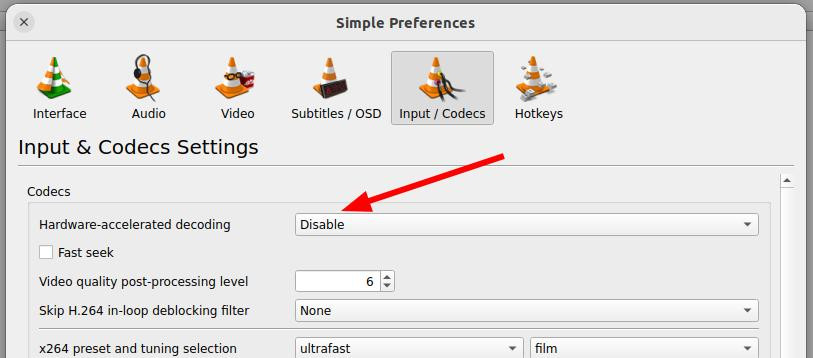
After DDG-ing (that’s DuckDuckGo-ing) with various search keywords, I kind of gave up, and switched to MPlayer. But since I don’t like to give up, I started looking at different settings in VLC Player and came across the Hardware-accelerated decoding in Tools -> Preferences -> Input/Codecs. After I disabled that, I restarted VLC Player, and the issue was gone.

Leave a Reply