
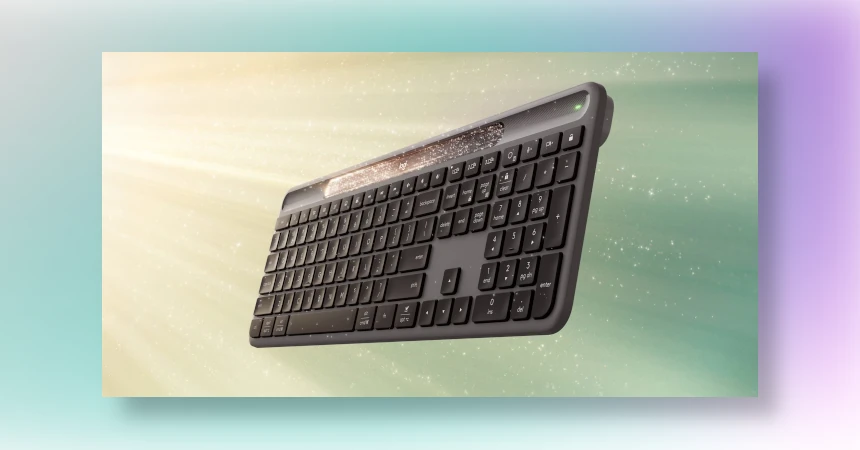
For years I’ve used the right Ctrl key as my Compose key on Ubuntu. It’s how I type characters like ë, é, ü and € without switching keyboard layouts. Then I bought myself a new keyboard, the Logitech Signature Slim Solar+ K980, and Compose suddenly stopped working.
It turns out the K980 has no right Ctrl key. Here’s what’s going on and how I fixed it with keyd.
The problem: the AI Launch Key
Where you’d expect the right Ctrl key, the K980 has an AI Launch Key. On Windows it opens Copilot. With Logitech’s Options+ software you can turn it back into a Ctrl key, but Options+ doesn’t run on Linux.
To see what the key actually sends, I watched the input events:
sudo apt install libinput-tools
sudo libinput debug-events
Pressing the AI key gave this sequence:
KEY_LEFTMETA   pressed
KEY_LEFTSHIFT  pressed
KEY_F23        pressed
KEY_F23        released
KEY_LEFTSHIFT  released
KEY_LEFTMETA   released
So the key doesn’t send a single keycode. It sends the combination Super + Shift + F23, the standard Copilot key combination. GNOME’s “Compose key = Right Ctrl” setting never sees a Ctrl press, so nothing happens.
The timestamps also showed that press and release come about 50 ms apart, no matter how long you hold the key. So it can never work as a Ctrl you hold down, only as a tap. That’s fine for Compose, which is a tap anyway.
The fix: remap the combination with keyd
keyd is a key remapping daemon that works at the system level, so it works the same in Wayland, X11 and on the login screen. It can catch the whole combination before it reaches the desktop, so the Super press doesn’t leak through and open the Activities overview.
1. Install keyd
sudo apt install keydWatch out: on Debian and Ubuntu the command is called keyd.rvaiya, not keyd, because another program already has that name. The service is still called keyd. If your Ubuntu version doesn’t have the package, you can build it from source following the instructions on GitHub.
2. Find your keyboard’s ID
Running sudo evtest on the Logitech device shows its vendor and product ID. For the Logi Bolt receiver it’s vendor 0x46d product 0xc548, or 046d:c548 in keyd notation. Matching only this ID leaves your laptop’s built-in keyboard alone.
3. Create the config
Create /etc/keyd/default.conf:
[ids]
046d:c548

[main]
leftshift+leftmeta+f23 = rightcontrol
This turns the AI key back into right Ctrl, so the existing GNOME Compose setting keeps working.
4. Enable and (re)start the service
sudo systemctl enable keyd
sudo systemctl restart keyd
This is where I got stuck for a while. The apt package starts keyd immediately after installation, before I’d written the config. keyd only reads its config at startup, so it kept running without one and ignored every device. Always restart keyd after editing the config.
Check that it picked up your keyboard:
journalctl -u keyd -n 30 --no-pagerYou should see a line like:
DEVICE: match 046d:c548:703933f1 /etc/keyd/default.conf (Logitech USB Receiver)If it says ignoring instead of match for your keyboard, keyd isn’t using your config. Check the file and restart the service again.
Result
Tap the AI key, then " and e, and you get ë. Compose works just like before, and the setup survives reboots because keyd runs as a system service.
Useful commands for troubleshooting:
sudo keyd.rvaiya monitor: shows live what keyd receivessystemctl status keyd: checks that the service is runningsudo systemctl disable --now keyd: undoes everything
This also works for other keyboards and laptops with a Copilot key. They all send the same Super + Shift + F23 combination, so you only need to change the ID in the [ids] section.
Picture from Logitech

Leave a Reply