
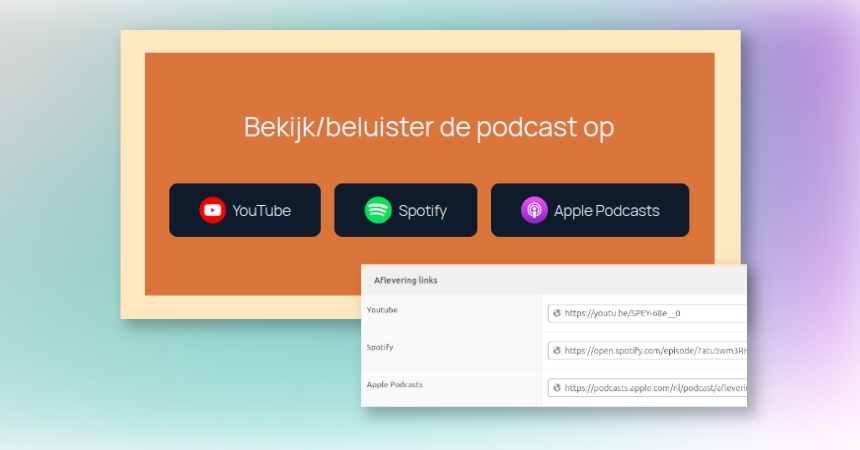
For my ADHD podcast website, Even de draad kwijt, I wanted something super simple:
- Every episode post should show the same block with 3 buttons: YouTube, Spotify, Apple Podcasts
- The URLs should be editable per episode
- The layout and styling should be maintained in one place, so I never have to copy-paste button blocks again
So I built a synced WordPress block pattern that pulls its button URLs straight from three ACF fields.
This is the setup I ended up with, why it works, and the exact code (available as a Gist).
The goal
I publish episodes as a custom post type (CPT). Each episode has three ACF URL fields:
youtubespotifyapple_podcasts
I want to edit those three fields for each episode, and have the buttons use these values automatically wherever the pattern is used.
The solution: synced patterns + block bindings
These two WordPress features should make this work beautifully.
- Synced patterns (the evolution of reusable blocks that were introduced in WordPress 5.0) let you update the pattern once and have it update everywhere.
- Block Bindings API (WordPress 6.5+) lets a core Button block read its
urlfrom a dynamic source like post meta. Buttons are explicitly supported.
Important: use the ACF field name meta key (not the underscored one)
ACF stores the value using the field “name” as the meta_key.
Also, Block Bindings cannot use protected meta keys that start with an underscore, and meta must be available in REST.
Step 1: Make sure the fields are available in the editor
Fort each field in the ACF field group, make sure to check “Allow Access to Value in Editor UI”

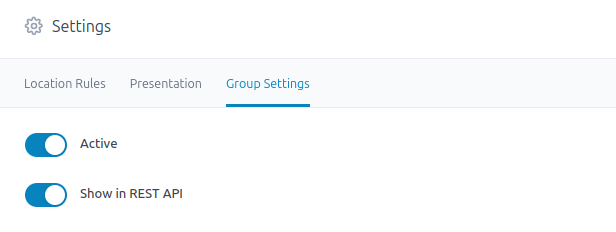
And also set the field group to Show in REST API in the field group settings.
Step 2: Create the block pattern
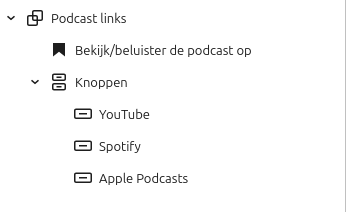
I created a simple block pattern with a group, and three buttons to start with. The structure is outlined in the screenshot below.
Step 3: Add the bindings
Let’s add the magic to the buttons. Below is the standard code for the button part. You can see this code on your own site after clicking the three dots in the block editor, and then select “Code Editor”.
< !-- wp:button {
    "backgroundColor":"custom-button-blue",
    "metadata":{
        "name":"YouTube"
    },
    "className":"btn-inline-icon is-style-fill",
    "style":{
        "border":{
            "width":"0px","style":"none","radius":{
                "topLeft":"10px","topRight":"10px","bottomLeft":"10px","bottomRight":"10px"
            }
        }
    }
}
- - >
After adding the needed binding code, it looks like this. So the only thing that was added is "bindings":{"url":{"source":"acf/field","args":{"key":"youtube"}}}
< !-- wp:button {
    "backgroundColor":"custom-button-blue",
    "metadata":{
        "name":"YouTube",
        "bindings":{
            "url":{
                "source":"acf/field","args":"key":"youtube"
            }
        }
    }
},
"className":"btn-inline-icon is-style-fill",
"style":{
    "border":{
        "width":"0px","style":"none","radius":"topLeft":"10px",
        "topRight":"10px", "bottomLeft":"10px","bottomRight":"10px"
    }
}
-- >
This make sure the block loads the ACF field value (in this case the YouTube field) and adds it as URL (HREF) to the YouTube button on page load.
Step 4: Add the pattern to the CPT single template
To reuse this pattern, we add it to the Single CPT template so that it will always be included. Big advantage: if you want to change the button block, just edit it, save it, and all episodes will have the updated layout.
Why I love this setup
- Edit the design once (synced pattern), it updates everywhere
- Edit links per episode (ACF fields)
- No custom blocks, no template spaghetti, just core features doing their job (OK, and a little ACF)

Leave a Reply